Configuration Guide
Django Control Room offers flexible configuration options to customize its behavior.
Official Site: djangocontrolroom.com.
Settings Overview
All Django Control Room settings are configured in your Django settings.py file under the DJ_CONTROL_ROOM_SETTINGS dictionary.
# settings.py
DJ_CONTROL_ROOM_SETTINGS = {
    'REGISTER_PANELS_IN_ADMIN': False,
    'PANEL_ADMIN_REGISTRATION': {},
    'LOAD_DEFAULT_CSS': True,
    'EXTRA_CSS': [],
}
CSS Customization
LOAD_DEFAULT_CSS
Type: bool
Default: True
Description: Whether to load the built-in Control Room stylesheet. Set to False to use your own styles from scratch.
EXTRA_CSS
Type: list[str]
Default: []
Description: Additional stylesheets to load after the default CSS. Accepts static file paths or full URLs.
Static file paths follow the same convention as Django's {% static %} tag: the path is relative to your app's static/ subdirectory, not the filesystem. For example, a file at myapp/static/myapp/css/overrides.css is referenced as myapp/css/overrides.css.
DJ_CONTROL_ROOM_SETTINGS = {
    'EXTRA_CSS': [
        # File lives at: myapp/static/myapp/css/overrides.css
        'myapp/css/overrides.css',
        # Full URLs are also supported (e.g. CDN-hosted theme)
        'https://cdn.example.com/theme.css',
    ],
}
Admin Sidebar Behavior
By default, all installed panels appear only in the Django Control Room section of the admin sidebar:
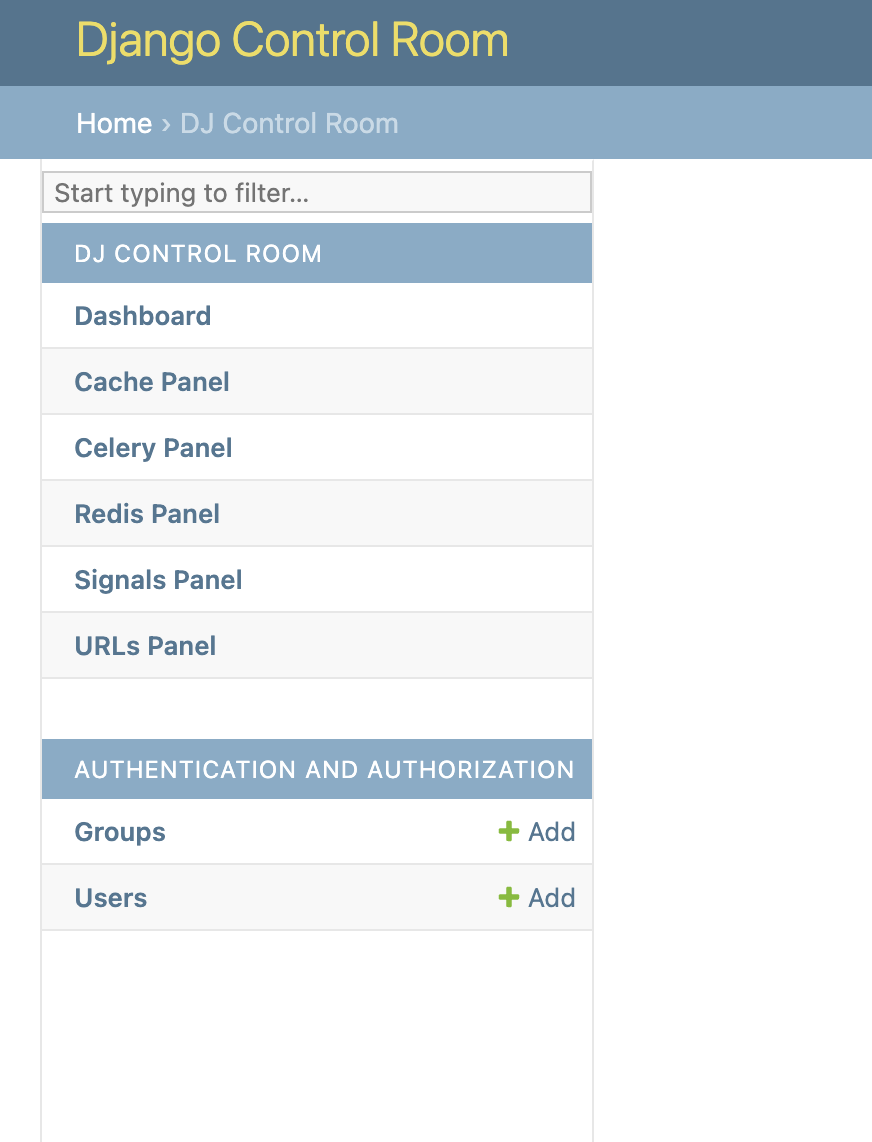
You can change this behavior to show panels in multiple sections.
Global Setting
Control whether ALL panels register in both places:
DJ_CONTROL_ROOM_SETTINGS = {
    # Show panels in both Control Room AND their own admin sections
    'REGISTER_PANELS_IN_ADMIN': True,
}
Result:
Admin Sidebar:
- DJ CONTROL ROOM
  - Dashboard
  - Redis Panel
  - Cache Panel
- DJ REDIS PANEL
  - Redis Panel
- DJ CACHE PANEL
  - Cache Panel
Per-Panel Override
Fine-grained control for specific panels:
DJ_CONTROL_ROOM_SETTINGS = {
    'REGISTER_PANELS_IN_ADMIN': False,  # Default for all

    'PANEL_ADMIN_REGISTRATION': {
        'dj_redis_panel': True,   # Redis shows in both places
        'dj_cache_panel': False,  # Cache only in Control Room
        'dj_urls_panel': True,    # URLs shows in both places
    }
}
Result:
Admin Sidebar:
- DJ CONTROL ROOM
  - Dashboard
  - Redis Panel (also below)
  - Cache Panel (only here)
  - URLs Panel (also below)
- DJ REDIS PANEL
  - Redis Panel
- DJ URLS PANEL
  - URLs Panel
Settings Reference
REGISTER_PANELS_IN_ADMIN
Type: bool
Default: False
Description: Global setting controlling whether panels register in their own admin sections in addition to Django Control Room.
False(default): Panels only appear under Django Control RoomTrue: Panels appear in both Django Control Room and their own sections
PANEL_ADMIN_REGISTRATION
Type: dict
Default: {}
Description: Per-panel override for admin registration. Keys are panel IDs, values are booleans.
Example:
'PANEL_ADMIN_REGISTRATION': {
    'dj_redis_panel': True,   # Override: show in both places
    'dj_cache_panel': False,  # Override: only in Control Room
}
Note: Per-panel settings override the global
REGISTER_PANELS_IN_ADMINsetting.
URL Configuration
Django Control Room expects panels to be mounted with explicit paths under /admin/:
# urls.py
urlpatterns = [
    # Mount panels with explicit paths under admin
    path('admin/dj-redis-panel/', include('dj_redis_panel.urls')),
    path('admin/dj-cache-panel/', include('dj_cache_panel.urls')),

    # Control Room dashboard
    path('admin/dj-control-room/', include('dj_control_room.urls')),
    path('admin/', admin.site.urls),
]
This gives admin-local URLs:
- /admin/dj-redis-panel/ - Redis panel
- /admin/dj-cache-panel/ - Cache panel
- /admin/dj-control-room/ - Control Room dashboard
Static Files
Django Control Room includes CSS, JavaScript, and images in its static files.
Development
Static files work automatically in development:
Production
Collect static files before deployment:
Configure your web server (nginx, Apache) to serve static files from STATIC_ROOT.
Security Considerations
Staff-Only Access
Django Control Room automatically requires staff permissions. Only users with is_staff=True can access the dashboard.
Package Verification
Featured panels are verified by package origin to prevent malicious packages from hijacking official panel IDs. This happens automatically - no configuration needed.
Permissions
All panel views should use Django's built-in permission decorators:
from django.contrib.admin.views.decorators import staff_member_required

@staff_member_required
def my_panel_view(request):
    # Your view logic
    pass
Custom Dashboard URL
To change the Control Room dashboard URL:
# urls.py
urlpatterns = [
    # Custom path instead of 'admin/dj-control-room/'
    path('dashboard/control-room/', include('dj_control_room.urls')),
    path('admin/', admin.site.urls),
]
Environment-Specific Settings
Use environment variables for different configurations:
# settings.py
import os

DJ_CONTROL_ROOM_SETTINGS = {
    'REGISTER_PANELS_IN_ADMIN': os.getenv('CR_REGISTER_PANELS', 'False') == 'True',
}
Advanced: Custom Panel Discovery
By default, panels are discovered via Python entry points. This happens automatically when Django starts.
To manually trigger panel discovery:
from dj_control_room.registry import registry

# Force panel discovery
registry.autodiscover()

# Get all registered panels
panels = registry.get_panels()
Best Practices
1. Keep It Simple
Start with default settings and only customize when needed:
2. Document Your Choices
Add comments explaining why you changed settings:
DJ_CONTROL_ROOM_SETTINGS = {
    # Redis panel needs to be in both places for legacy admin links
    'PANEL_ADMIN_REGISTRATION': {
        'dj_redis_panel': True,
    }
}
3. Test Configuration Changes
After changing settings, verify: 1. Panels appear in expected locations 2. URLs resolve correctly 3. Permissions work as expected
Troubleshooting
Panels Not Appearing
Panels don't show in the expected admin sections.
Solutions:
1. Check INSTALLED_APPS includes both dj_control_room and panel apps
2. Restart Django server after changing settings
3. Clear browser cache
URL Resolution Errors
NoReverseMatch when clicking panel links.
Solutions:
1. Ensure panel URLs are included in urls.py
2. Verify panel's urls.py defines app_name
3. Check panel ID matches app_name
Settings Not Taking Effect
Configuration changes don't apply.
Solutions:
1. Restart Django server
2. Check settings file syntax (valid Python dictionary)
3. Verify settings key is DJ_CONTROL_ROOM_SETTINGS (not DJ_CONTROL_ROOM)