Creating Panels
Learn how to create custom panels for Django Control Room.
Official Site: djangocontrolroom.com.
Cookiecutter Template (Recommended)
The fastest way to create a new panel is using our official cookiecutter template:
cookiecutter-dj-control-room-plugin
You can find a guide for creating your very first admin panel using this tempalte at: - https://djangocontrolroom.com/guides/create-django-control-room-panel
This template generates a complete, production-ready panel structure with:
- Django admin integration
- Docker Compose development setup
- Test suite with pytest
- Documentation with MkDocs
- Modern Python packaging (
pyproject.toml) - Example project for testing
Using the Template
pip install cookiecutter  # requires cookiecutter>=2.0.0
cookiecutter https://github.com/yassi/cookiecutter-dj-control-room-plugin
The template will prompt you for project details and generate everything you need to start building your panel immediately.
Quick Start (Manual Setup)
A panel is a Python package that implements a simple interface. Your panel will appear in the Control Room dashboard alongside official panels:
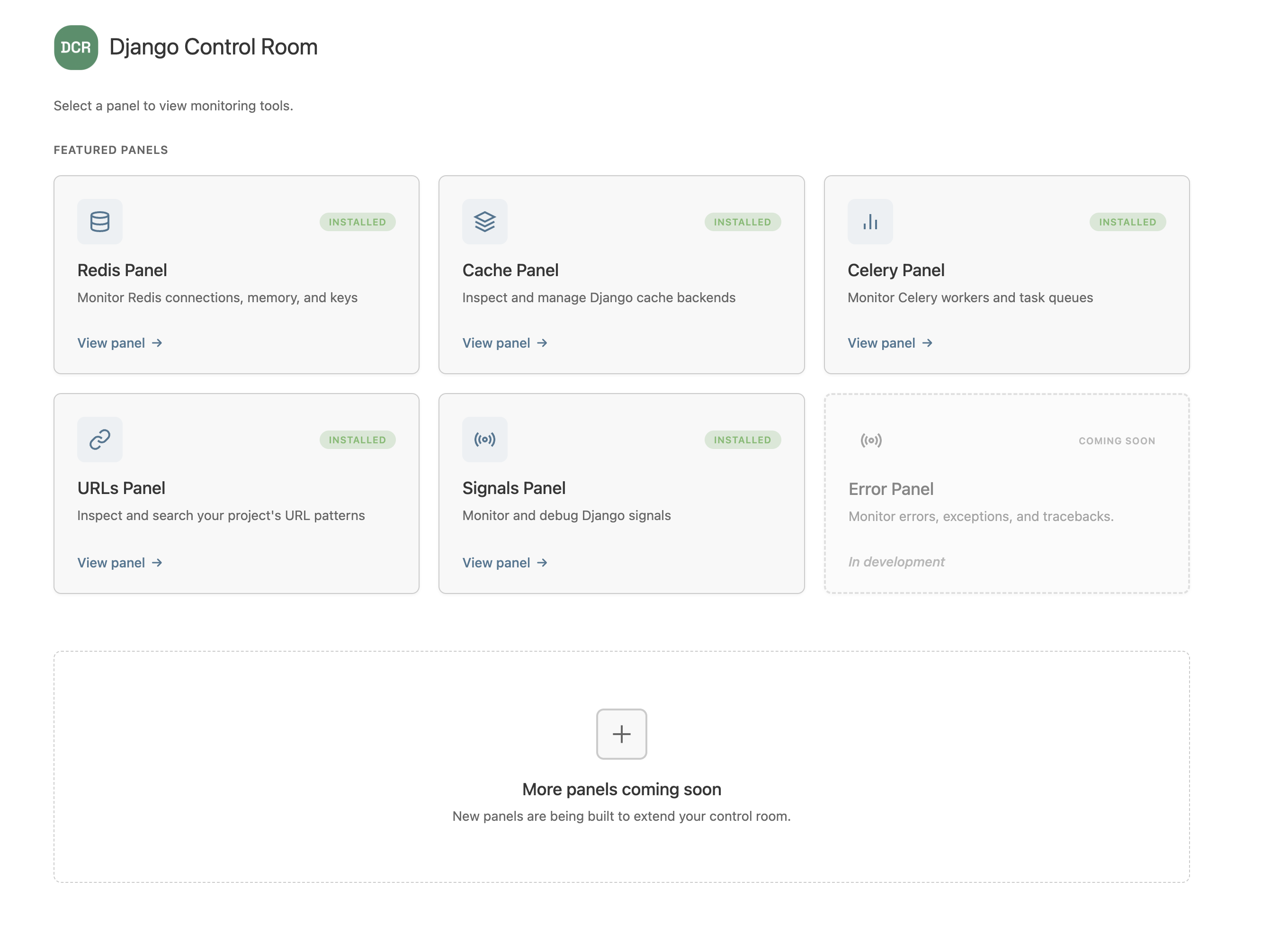
Here's the minimum you need:
# my_panel/panel.py
class MyPanel:
    name = "My Panel"
    description = "My awesome panel for monitoring X"
    icon = "chart"
# pyproject.toml
[project.entry-points."dj_control_room.panels"]
my_panel = "my_panel.panel:MyPanel"
That's it! Your panel will be automatically discovered by Django Control Room.
Panel Interface
How the Registry ID Works
Django Control Room derives a unique registry key for your panel automatically from your PyPI distribution name (the name field in pyproject.toml), normalizing hyphens to underscores. For example, a package named my-panel gets the registry key my_panel.
This means you never need to declare an id on your panel class — and if you do, it is silently ignored. Two different panel authors can never accidentally clobber each other's panels by picking the same string.
Required Attributes
Every panel must define these three attributes:
name (str)
Display name shown in the Control Room dashboard.
description (str)
Brief description (1-2 sentences) explaining what your panel does.
icon (str)
Icon identifier for visual representation in the dashboard.
Available icons:
- database - Database/storage related
- layers - Caching/stacking related
- link - URL/routing related
- chart - Analytics/monitoring related
- radio - Signals/events related
- cog - Settings/configuration related
Optional Attributes
app_name (str)
The Django app label used in INSTALLED_APPS and as the URL namespace in your urls.py. Defaults to the normalized distribution name (hyphens replaced with underscores), which is typically the same as your Python package name. Only set this explicitly if your app label differs from your dist name.
Django Control Room uses this value to check INSTALLED_APPS and to resolve your panel's URL via reverse(f'{panel.app_name}:{url_name}'). It must match the app_name declared in your urls.py.
package (str)
Your PyPI package name. When set, enables the install/configure page with pip install instructions.
docs_url / pypi_url (str)
Optional links shown on the install/configure page.
Optional Methods
get_url_name()
Returns the URL name for your panel's main entry point (defaults to "index").
Django Control Room will resolve your panel's URL using: reverse(f'{panel.app_name}:{url_name}')
Complete Panel Structure
Here's a complete panel package structure:
my-panel/
├── my_panel/
│   ├── __init__.py
│   ├── panel.py          # Panel class
│   ├── apps.py           # Django app config
│   ├── models.py         # Placeholder model for admin
│   ├── admin.py          # Admin registration
│   ├── urls.py           # URL patterns
│   ├── views.py          # Views
│   ├── templates/
│   │   └── admin/
│   │       └── my_panel/
│   │           ├── base.html
│   │           └── index.html
│   └── static/
│       └── my_panel/
│           └── css/
│               └── styles.css
├── tests/
├── pyproject.toml
└── README.md
Step-by-Step Guide
1. Create Package Structure
Use the cookiecutter template:
Or manually create the structure shown above.
2. Define Panel Class
# my_panel/panel.py
class MyPanel:
    """
    My awesome panel for Django Control Room.
    """

    # Required
    name = "My Panel"
    description = "Monitor and manage XYZ"
    icon = "chart"

    # Optional: only needed if your app label differs from your PyPI dist name
    # app_name = "my_panel"

    # Optional: enables the install/configure page
    # package = "my-panel"

    # Optional: customize URL name (defaults to "index")
    def get_url_name(self):
        return "index"
3. Create Django App Config
# my_panel/apps.py
from django.apps import AppConfig

class MyPanelConfig(AppConfig):
    default_auto_field = 'django.db.models.BigAutoField'
    name = 'my_panel'
    verbose_name = 'My Panel'
4. Define URL Patterns
# my_panel/urls.py
from django.urls import path
from . import views

app_name = 'my_panel'  # Must match panel.app_name (defaults to normalized dist name)

urlpatterns = [
    path('', views.index, name='index'),  # Main entry point
    path('detail/<str:pk>/', views.detail, name='detail'),
]
Important:
app_namein yoururls.pymust match theapp_nameon your panel class (which defaults to the normalized PyPI distribution name). For a package namedmy-panel, both should bemy_panel.
5. Create Views
# my_panel/views.py
from django.contrib.admin.views.decorators import staff_member_required
from django.shortcuts import render
from django.contrib import admin

@staff_member_required
def index(request):
    """Main panel view."""
    context = admin.site.each_context(request)
    context.update({
        'title': 'My Panel',
        # Your data here
    })
    return render(request, 'admin/my_panel/index.html', context)
6. Create Templates
{# my_panel/templates/admin/my_panel/base.html #}
{% extends "admin/base_site.html" %}
{% load i18n admin_urls static %}
{% block title %}{{ title }} | My Panel{% endblock %}
{% block extrahead %}
{{ block.super }}
<link rel="stylesheet" href="{% static 'my_panel/css/styles.css' %}">
{% endblock %}
{% block branding %}
<h1 id="site-name">
<a href="{% url 'my_panel:index' %}">My Panel</a>
</h1>
{% endblock %}
{% block breadcrumbs %}
<div class="breadcrumbs">
<a href="{% url 'admin:index' %}">{% trans 'Home' %}</a>
› My Panel
</div>
{% endblock %}
{% block content %}{% endblock %}
{# my_panel/templates/admin/my_panel/index.html #}
{% extends "admin/my_panel/base.html" %}

{% block content %}
<div class="module">
    <h2>My Panel Dashboard</h2>
    <p>Your content here</p>
</div>
{% endblock %}
7. Add Entry Point
# pyproject.toml
[project.entry-points."dj_control_room.panels"]
my_panel = "my_panel.panel:MyPanel"
8. Create Placeholder Model
# my_panel/models.py
from django.db import models

class MyPanelPlaceholder(models.Model):
    """Placeholder model for admin integration."""

    class Meta:
        managed = False
        verbose_name = "My Panel"
        verbose_name_plural = "My Panel"
        app_label = "my_panel"
# my_panel/admin.py
from django.contrib import admin
from django.http import HttpResponseRedirect
from django.urls import reverse
from .models import MyPanelPlaceholder

@admin.register(MyPanelPlaceholder)
class MyPanelAdmin(admin.ModelAdmin):
    def changelist_view(self, request, extra_context=None):
        return HttpResponseRedirect(reverse('my_panel:index'))

    def has_add_permission(self, request):
        return False

    def has_change_permission(self, request, obj=None):
        return request.user.is_staff

    def has_delete_permission(self, request, obj=None):
        return False
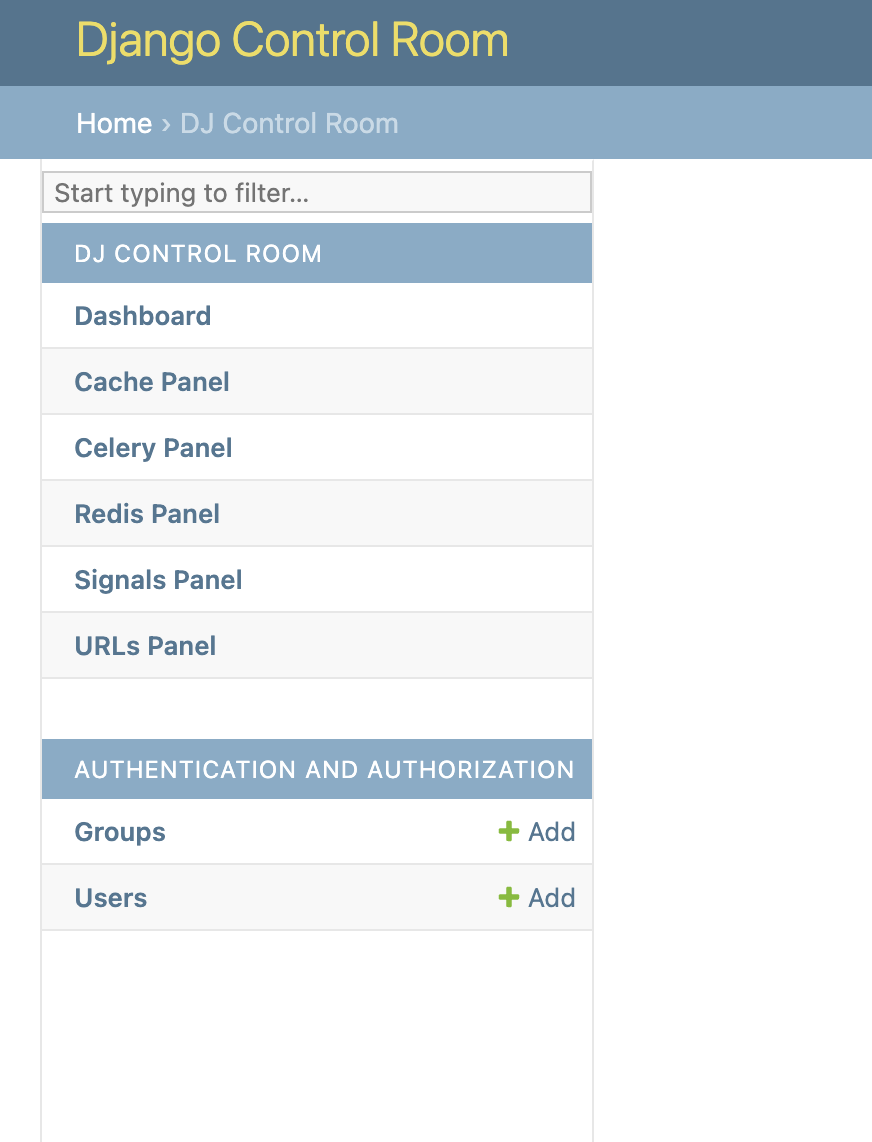
Note: Django Control Room will automatically unregister this placeholder model and replace it with its own proxy model under the "Django Control Room" section (unless configured otherwise).
Once your panel is installed and configured, it will appear in the admin sidebar under Django Control Room:
Publishing Your Panel
1. Complete pyproject.toml
[build-system]
requires = ["setuptools>=61.0", "wheel"]
build-backend = "setuptools.build_meta"

[project]
name = "my-panel"
version = "0.1.0"
description = "My awesome panel for Django Control Room"
readme = "README.md"
license = {text = "MIT"}
authors = [
    {name = "Your Name", email = "you@example.com"},
]
requires-python = ">=3.9"
classifiers = [
    "Framework :: Django",
    "Framework :: Django :: 4.2",
    "Programming Language :: Python :: 3.9",
    "Programming Language :: Python :: 3.10",
    "Programming Language :: Python :: 3.11",
    "Programming Language :: Python :: 3.12",
]
keywords = ["django", "admin", "panel"]
dependencies = [
    "Django>=4.2",
]

[project.entry-points."dj_control_room.panels"]
my_panel = "my_panel.panel:MyPanel"

[project.urls]
Homepage = "https://github.com/yourusername/my-panel"
Documentation = "https://github.com/yourusername/my-panel"
Repository = "https://github.com/yourusername/my-panel"

[tool.setuptools.packages.find]
exclude = ["tests*"]

[tool.setuptools.package-data]
"my_panel" = ["templates/**/*", "static/**/*"]
2. Build Package
3. Publish to PyPI
Best Practices
1. Use Admin Context
Always include Django admin context for proper styling and navigation:
2. Require Staff Permission
Protect your views with the staff member decorator:
from django.contrib.admin.views.decorators import staff_member_required

@staff_member_required
def my_view(request):
    # ...
3. Follow Django Admin Styling
Extend Django admin templates and use admin CSS classes for consistency:
{% extends "admin/base_site.html" %}

<div class="module">
    <h2>Module Title</h2>
    <table class="table">
        <!-- Use admin table styles -->
    </table>
</div>
4. Handle Errors Gracefully
Provide helpful error messages:
try:
    data = fetch_data()
except Exception as e:
    messages.error(request, f"Error fetching data: {e}")
    data = []
5. Document Your Panel
Include comprehensive README with: - Installation instructions - Configuration options - Screenshots - Usage examples
Testing Your Panel
Local Development
-
Install your panel in editable mode:
-
Add to
INSTALLED_APPS: -
Include URLs:
-
Check panel registration:
Write Tests
# tests/test_panel.py
from django.test import TestCase
from my_panel.panel import MyPanel

class PanelTestCase(TestCase):
    def test_panel_attributes(self):
        panel = MyPanel()
        self.assertEqual(panel.name, 'My Panel')
        self.assertTrue(panel.description)
        self.assertTrue(panel.icon)

    def test_url_name(self):
        panel = MyPanel()
        self.assertEqual(panel.get_url_name(), 'index')
Examples
Check out these official panels for reference:
- dj-redis-panel - Redis monitoring
- dj-cache-panel - Cache inspection
- dj-urls-panel - URL browsing
Getting Help
Resources
- Cookiecutter Template - Official panel template generator
- djangocontrolroom.com - Tutorials and examples
Next Steps
- Configuration - Learn about available settings
- API Reference - Detailed API documentation